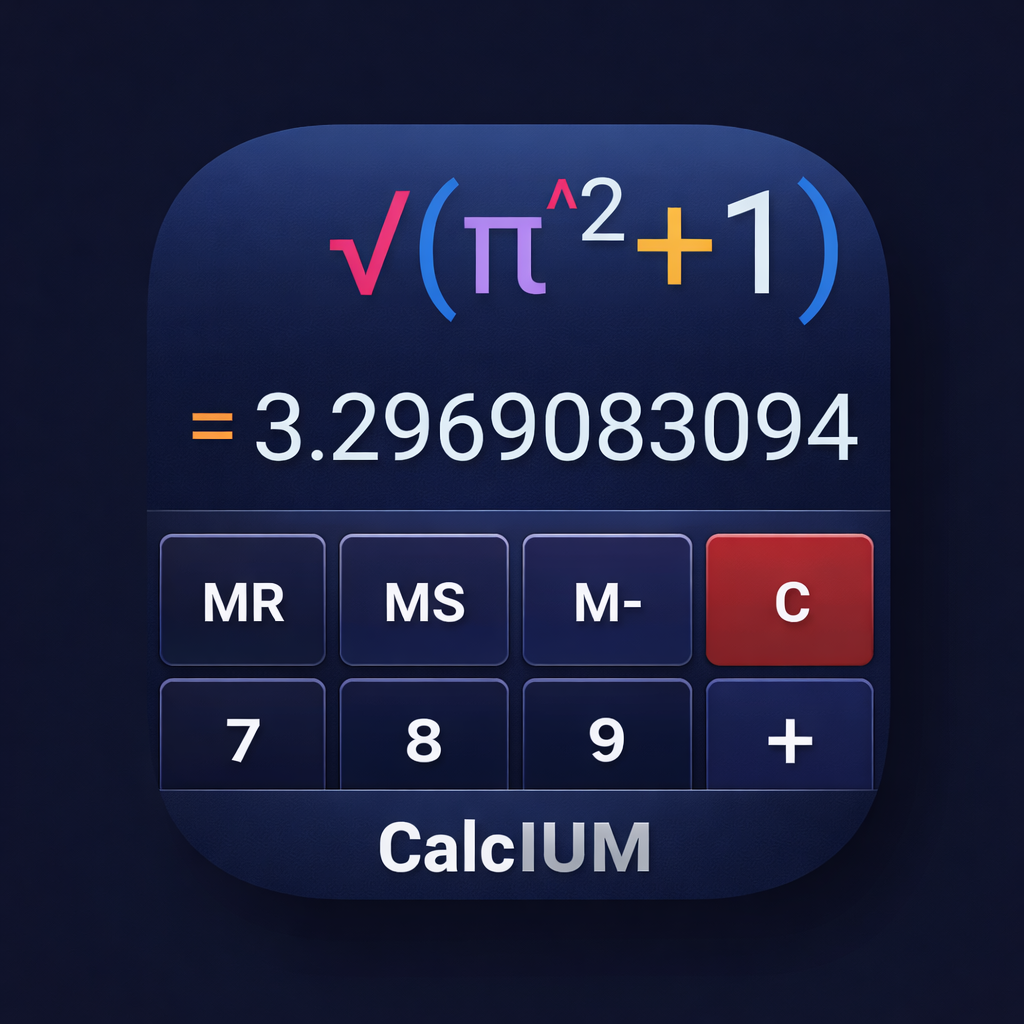
Numeric Panel
The main keypad for digits, operators, and memory. Button labels match the on-screen labels.
MR
Memory Recall. Inserts the value stored in memory at the cursor position. Does not clear memory.
MS
Memory Store. Stores the current result in memory (overwrites previous value).
M+
Memory Add. Adds the current result to the value in memory.
M−
Memory Subtract. Subtracts the current result from the value in memory.
MC
Memory Clear. Clears the stored memory value.
←
Backspace. Deletes one character before the cursor. If Smart back is enabled in Settings, it may delete a whole token (e.g. a function name) for convenience.
(
Left parenthesis. Inserts ( into the expression.
)
Right parenthesis. Inserts ) into the expression.
//
Integer division / remainder. Inserts //. The result is the remainder (or modulo) of integer division. Behavior depends on Settings → Remainder '//' Mode: Remainder (truncate), Modulo (Euclidean), or Floor.
C
Clear. Clears the entire expression and result.
7, 8, 9
Digits. Insert the characters 7, 8, 9 into the expression.
/
Division. Inserts /. Formula: a/b.
Fn/Ext
Panel switch. Tap: toggles between Numeric and Function panels. Long-press: switches directly to Extension panel. The button label changes based on current panel context.
4, 5, 6
Digits. Insert 4, 5, 6.
*
Multiplication. Inserts *. Formula: a*b.
%
Percent. Inserts %. Meaning depends on Settings → Percent Mode: Classic — percent of the left operand (e.g. 200−10% = 200−20 = 180); Simple — percent as decimal (e.g. 200−10% = 200−0.1 = 199.9).
1, 2, 3
Digits. Insert 1, 2, 3.
−
Minus. Inserts −. Formula: a−b.
√
Square root. Inserts √(. Formula: √x (positive root).
0, 00
Digits. Insert 0 or 00.
.
Decimal point. Inserts . for decimal numbers.
+
Plus. Inserts +. Formula: a+b.
=
Equals. Evaluates the expression and shows the result.
Long press on = adds the expression and result to History (Menu → History) for later use.
Result format depends on Settings (precision, exponent format, etc.).
Function Panel
Trigonometric, logarithmic, and utility functions. Some buttons open overlays (panels).
pos
Cursor overlay. Opens the CURSOR overlay to move the cursor in the expression and see position info.
Header: overlay title; × — close (or use Off below).
Content:
- SL — read-only: character to the left of the cursor.
- CP — read-only: number of characters from cursor to end of expression.
- SR — read-only: character to the right of the cursor.
- ← — move cursor left one character.
- ↑ — move to the line above (if multiline).
- → — move cursor right one character.
- END — move to end of expression.
- ↓ — move to line below.
- BEG — move to start of expression.
- Off — unfocus expression field and close cursor mode.
ABS
Absolute value. Inserts abs(. Formula: |x|.
DEG
Degree function. Inserts deg( into the expression. Converts radians to degrees (e.g. deg(π) = 180).
RAD
Radian function. Inserts rad( into the expression. Converts degrees to radians (e.g. rad(180) = π).
HYP
Hyperbolic mode switch. Toggles hyperbolic functions. When on, SIN/COS/TAN etc. become sinh/cosh/tanh; ASIN/ACOS/ATAN become asinh/acosh/atanh (and same for COT, CSC, SEC and their inverses).
EXP
Exponential. Inserts exp(. Formula: e^x.
INT
Integer part. Inserts int(. Truncates toward zero.
LOG
Logarithm base 10. Tap: inserts log(. Long-press inserts log2( (base-2 logarithm). The small LOG2 tag in the corner indicates the long-press action.
SIN, COS, TAN
Insert sin(, cos(, tan(. When HYP is on: sinh(, cosh(, tanh(. Angle mode (DEG/RAD) applies.
LN
Natural logarithm. Inserts ln(. Formula: ln(x) = log_e(x).
Nr/Ext
Panel switch. Tap: toggles between Function and Extension panels. Long-press: switches to Extension panel.
ASIN, ACOS, ATAN
Inverse trigonometric. Insert asin(, acos(, atan(. With HYP: asinh, acosh, atanh.
N!
Factorial. Inserts !( or factorial of the preceding number. Formula: n! = 1·2·…·n (integer n ≥ 0).
x^y
Power. Inserts ^ (or equivalent). Formula: x^y.
COT, CSC, SEC
Insert cot(, csc(, sec(. With HYP: coth, csch, sech.
℮
Euler's number. Inserts the constant e (≈ 2.718…).
ʸ√x
y-th root of x. Inserts the root function. Formula: ʸ√x = x^(1/y).
ACOT, ACSC, ASEC
Inverse cot, csc, sec. With HYP: acoth, acsch, asech.
π
Pi. Inserts the constant π (≈ 3.14159…).
= (Function panel)
Same as Numeric panel: tap evaluates; long press adds the record to History.
Extension Panel
Logic, bases, constants, units, config, statistics, graph, time, and more. Many buttons open overlays (some with nested overlays).
AND, OR, XOR, NOT
Bitwise/logic. Insert and, or, xor, not. Used with integer bases (BIN, OCT, HEX).
ENG
Engineering notation switch. Toggles result display in engineering notation (exponent multiple of 3, e.g. 1.5E3). Shown in status bar when active.
AB
Symbols overlay (AB). Opens the panel to insert number-format symbols and hex digits.
Header row:
- ← — Backspace in the expression.
- C — Clear expression.
- Nr — Open mini Numeric overlay.
- Fn — Open mini Function overlay.
Symbol grid (what each inserts):
- 0b — Binary literal prefix (e.g. 0b1010).
- 0o — Octal literal prefix (e.g. 0o12).
- 0x — Hexadecimal literal prefix (e.g. 0xFF).
- _ — Digit separator (visual grouping, ignored in value).
- A, B, C, D, E, F — Hexadecimal digits (insert the character).
CONST
Constants overlay. Inserts a constant name (the app replaces it with the numeric value when evaluating).
Header: ← (backspace), C (clear), Nr (mini Numeric), Fn (mini Function).
Constants (label = what is inserted):
- π — Pi (3.14159…).
- e — Euler's number (2.718…).
- τ — Tau (2π).
- φ — Golden ratio.
- γ — Euler–Mascheroni constant.
- ln2, ln10 — ln(2), ln(10).
- c — Speed of light; h, ħ — Planck constants; kB — Boltzmann; R — gas constant; NA — Avogadro; qe — elementary charge.
- ε0, μ0 — Permittivity and permeability of vacuum; g0 — standard gravity; G — gravitational constant; σ — Stefan–Boltzmann.
- me, mp, mn — Electron, proton, neutron mass.
UNITS
Units overlay. Unit converter with two levels: category list, then category screen with conversion.
First level (UNITS):
- Header: UNITS title; × — close.
- Content: Grid of category buttons. Tap a category to open it. Categories: Time, Length, Area, Volume, Mass, Temperature, Speed, Pressure, Energy, Power, Angle, Frequency, Force, Acceleration, Torque, Density, Data, Current, Voltage, Resistance, Capacitance.
Category level (e.g. TIME, LENGTH):
- Header: Category name (e.g. TIME); ← — back to category list; × — close overlay.
- Fields: Input — value in the FROM UNIT; Result — value in the TO UNIT. Hint line shows "from_symbol → to_symbol".
- Button row: FROM UNIT (shows current unit symbol) — tap to open unit picker for source; TO UNIT (shows unit symbol) — tap to open picker for target; <> — swap FROM UNIT and TO UNIT; Add — insert the result into the expression; ← — back to category list.
- Keypad: Digits 7 8 9 ← C; 4 5 6 − ±; 1 2 3 0 . for editing Input.
- DATA category: The header also shows a SI/IEC switch. SI uses decimal units (kB, MB, GB, TB = powers of 1000); IEC uses binary units (KiB, MiB, GiB, TiB = powers of 1024).
Recently added units: Volume — floz, tsp, tbsp, cup, pt; Mass — µg; Power — mW, GW; Frequency — mHz, THz; Force — mN; Density — g/ml; Current — nA, MA; Voltage — µV, MV; Resistance — mΩ, GΩ.
CFG
Config overlay (Integer format). Sets integer representation for BASE and bitwise operations (AND, OR, //, etc.).
Header: INTEGER FORMAT title; × — close.
Content:
- Word size — bit width. Buttons: 8, 16, 32, 64. Tap to select.
- Signed — On (two’s complement) or Off (unsigned). Tap to select.
Can also be opened from BASE overlay as Global or Local CFG.
nCr, nPr
Combinations / permutations. Insert nCr(n,k) and nPr(n,k). Formulas: nCr = n!/(k!(n−k)!), nPr = n!/(n−k)!.
SI
SI prefixes overlay. Each button inserts the numeric multiplier for that SI prefix (e.g. k → 1000, μ → 1e-6).
Header: ←, C, Nr, Fn.
Prefix grid (4 rows × 5):
- Row 1: Y, Z, E, P, T (10^24 down to 10^12).
- Row 2: G, M, k, h, da (10^9, 10^6, 10^3, 10^2, 10^1).
- Row 3: d, c, m, μ, n (10^-1 … 10^-9).
- Row 4: p, f, a, z, y (10^-12 … 10^-24).
Fn/Nr, Nr, Fn
Panel switch / mini overlays. Fn/Nr (row 3): tap → Function panel, long-press → Numeric. Nr (row 4) and Fn (row 5) open a small floating keypad overlay.
NUMERIC overlay (mini Nr): Title "NUMERIC", header × (close). Rows: ← ( ) // C | 7 8 9 / % | 4 5 6 * x^y | 1 2 3 - √ | 0 00 . + ʸ√x. Same action as main Numeric panel except there is no = button.
FUNCTIONS overlay (mini Fn): Title "FUNCTIONS", header ×. Rows: ← DEG RAD HYP C | ABS EXP INT LOG LOG2 | SIN COS TAN LN % | ASIN ACOS ATAN N! x^y | COT CSC SEC e √ | ACOT ACSC ASEC π ʸ√x. Same as Function panel (angle mode, HYP, all trig/log/functions, e, π).
BASE
Base overlay. Shows the current result in four bases; optional copy or insert into expression.
Header: Copy — copy the selected base string to clipboard; →Exp — insert the selected base representation into the expression; × — close.
Rows: Each row shows one base: Global: WS=…, Signed=… with CFG (opens global config overlay: Word size, Signed On/Off); Local: … with CFG (local base config); then DEC, HEX, OCT, BIN with the current result in that base. Tapping a row selects it for Copy/To expression.
SEED
Seed overlay (Set RNG Seed). Set the seed for the random number generator used by RAND and the RND overlay. Same seed gives a reproducible random sequence.
Header: SET RNG SEED title; Apply — apply the entered seed (next RAND/Rnd will use it); × — close.
Content: Editable field for the seed value (integer). Keypad: digits, ←, C, −, ±, ., and optional +1/−1 to adjust. Apply is enabled when the field is non-empty; tap to set the seed.
GCD, LCM
Greatest common divisor / Least common multiple. Insert gcd( and lcm( for two integers.
RND
RND overlay. Generate random numbers; optionally copy or insert into expression.
Header: Copy — copy current value; →Exp — insert current value at cursor; × — close.
Generate number — button in the overlay body (one-shot generate).
Mode: INT / FLOAT toggle — integer in [Min, Max] or float in [Min, Max].
Fields: Min, Max — range bounds (editable). Rnd — generate once.
Keypad: First row: <>, -, ., ←, C. Then digits 1 2 3 4 5 and 6 7 8 9 0 — for editing Min/Max values in the overlay.
DMS
DMS overlay. Convert between decimal degrees and degrees–minutes–seconds (D°M′S″).
Header: →Exp — insert the conversion result into the expression; × — close.
Modes: →DMS — enter decimal degrees, result is D°M′S″; →DEG — enter Degrees, Minutes, Seconds, result is decimal degrees. Tap the mode button to switch.
Fields:
- →DMS: one decimal input field; Result shows D°M′S″.
- →DEG: Degrees, Minutes, Seconds (three fields); Result shows decimal degrees.
Keypad and backspace/edit buttons are used to edit the active field. Long-press on DMS (Extension panel) opens this overlay directly.
FMT
Format overlay. Format the current result with local options, then copy or insert the formatted string into the expression. The Formatted: field shows the result in real time.
Header: Copy — copy formatted result to clipboard; →Exp — insert formatted result at cursor; × — close.
Row 1 (tap opens picker):
- Precision — decimal places. Picker: Full/Raw, Auto, 0, 1, … 10, 20.
- Rounding — rounding mode. Picker: None, Half down, Half up, Ceiling, Floor, Half even.
- Exponent — when to use exponent. Picker: Never, Auto, Always.
Row 2:
- Remove zeroes — toggle ON / OFF (hide or show trailing zeros).
- Separators — digit grouping. Tap opens picker: None, Space, Apostrophe.
- Engineering — toggle ON / OFF (exponent multiple of 3, e.g. 1.5E3).
Each main button shows the current value; tapping Precision, Rounding, Exponent, or Separators opens a picker overlay to choose a value. Remove zeroes and Engineering toggle directly.
RAND
Random. Inserts a random number (uses RND overlay settings or default range).
STAT
Stat overlay. Inspect the current result: each row shows a computed property of the number. Tap a row to select it; Copy copies that row’s value; Copy all copies the full list.
Header: Copy — copy the selected row’s value; Copy all — copy all rows to clipboard; →Exp — insert selected value into expression; × — close.
Rows (in order):
- Sign — + or −
- Abs — absolute value (plain string)
- Int part — integer part
- Frac part — fractional part (or — if none)
- Scale — decimal scale
- Digits — number of digits
- Zero — Yes / No
- Integer — Yes / No
- Finite — Yes / No
- Parity — Even / Odd / —
Tap a row to select it (red border); then Copy uses that row’s value.
DIFF
Diff overlay. Compare two results (A = previous, B = current).
Header: <> — swap A and B; →Exp — insert the selected difference value into the expression; × — close.
Buttons: A← — set A to current result; B← — set B to current result. Δ — difference B−A; |Δ| — absolute difference; %Δ — percent change (100*(B−A)/A or similar). One of Δ, |Δ|, %Δ is selected for →Exp.
GRAPH
Graph screen. Opens the graph tab. There you get the GRAPH overlay with:
Add to history
Saves the current graph to History: formulas, X/T/θ ranges, options (autoY, legend, etc.), and a PNG image. You can later open it from Menu → History and "Insert Graph".
Series
Opens the SERIES overlay. Header: Add series (add a new series, up to 6); × close.
For each series row:
- Colored box with number (1, 2, 3…) — tap to set this series as active (used by Formula, X-range, x0, etc.).
- ✓ / ✕ — visibility: show or hide this series on the graph.
- Func / Param / Polar — type: Function y=f(x), Parametric x(t),y(t), or Polar r(θ). Tap to cycle.
- Line / Dots — draw as connected line or dots. Tap to toggle.
- f′ (Function only) — show first derivative. Tap to toggle.
- Icon: animated point (Polar only) — button with no text; tap to toggle the animated point on the curve.
- f″ (Function only) — show second derivative. Tap to toggle.
- Fill (Function only) — fill area under the curve. Tap to toggle.
- Del — delete this series (not shown for the first series).
To edit the formula, use the Formula button in the main GRAPH overlay (it edits the active series).
View
Opens the graph View overlay. Header: × close.
Row 1
- Center — center axes
- Zoom+ — zoom in
- ×N (e.g. ×1.00) — current zoom factor (numeric display)
- Zoom− — zoom out
- Reset — reset zoom and grid
Row 2
- Robust — robust Y scaling (for one visible series)
- GridX+ / GridX− — X grid step (value shown between them)
- Snap — snap cursor to grid
Row 3
- Auto Y — auto Y range
- GridY+ / GridY− — Y grid step (value shown between them)
- Cursor — show/hide crosshair cursor
Row 4
- Asymp — show asymptotes
- Axes — show axes
- Grid — show grid
- Labels — show labels
- Legend — show legend
Formula
Opens the Formula overlay to edit the formula for the active series.
Header: × — close.
Content: Editable formula field (and for parametric: x(t), y(t) targets; for polar: r(θ)). Keypad: ←, C, digits, operators, function buttons (LOG, LOG2, LN, sin, cos, etc.), , for argument separator. For Function: one expression (e.g. sin(x)); for Parametric: x(t) and y(t); for Polar: r(θ).
X-range / T-range / θ-range
Opens the Range overlay for the active series. The title and fields depend on series type.
Header: X-range / T-range / θ-range (title); × — close.
Content:
- Function (X-range): X min, X max, Δx (step).
- Parametric (T-range): t min, t max, Δt.
- Polar (θ-range): θ min, θ max, Δθ.
Each value is editable; keypad and control buttons (←, C, −, ., /, digits, presets like π, 2π) apply to the active field. An Apply or apply step may be used to confirm the range.
x0, t0, θ0
Opens the cursor-offset overlay for the active series. The crosshair on the graph is at this value.
Header: X0 / T0 / θ0 (title depends on series type: Function → X0, Parametric → T0, Polar → θ0); × — close.
Content: One editable field for the cursor value (x0, t0, or θ0). Presets: for Function −π, 0, π; for Parametric/Polar 0, π, 2π. Control row: ←, −, ., /, C. Digits and constants (e.g. π) can be entered. Apply updates the graph cursor position. The graph shows the crosshair at this value; the active series can be evaluated at this point (value displayed on the graph or in the overlay as implemented).
Number mode: Normal / Raw
Toggle how numbers are shown on the graph (e.g. Normal = formatted, Raw = full precision).
Themes
Opens the Themes overlay to choose the graph color theme (background and curves).
Header: overlay title; × — close.
Content: Four theme buttons — Light, Med Light, Med Dark, Dark. Tap to select; the active theme is highlighted.
Render mode: Cached / Realtime
Toggle render pipeline: Cached — faster, uses cached bitmap; Realtime — redraws on change. Use Cached for complex graphs on slow devices.
Presets
Opens the Presets overlay with built‑in example graphs. Use it to load a ready-made graph (functions, parametric, polar, or mixed) and then edit or share it.
Header: PRESETS title; × — close.
Tabs: Func — y=f(x); Param — parametric x(t), y(t); Polar — r(θ); Mixed — combined.
Content: Scrollable list of preset cards (title, comment, preview). Tap a card to select it (a "Selected" header appears above it). Open the card menu (tap or long-press) for:
- Insert Graph — load this preset into the graph (replaces current graph).
- Share Graph Image (.png) — share as image when a saved image exists.
- Share Graph Data (.json) — share graph definition as JSON.
- Edit Comment — edit the preset comment (local, for this session).
To keep your current graph for later, use Add to history in the GRAPH overlay.
TIME
Time overlay. Compute with two operands A and B: durations (days, hours, min, sec, ms) or date-time (yyyy-MM-dd and HH:mm:ss). Operation + or −; result can be a duration or a date-time. Copy or insert the result into the expression.
Header: Copy — copy the human-readable result to clipboard; →Exp — insert the numeric result (e.g. duration in chosen unit, or epoch ms) into the expression; × — close.
Operand row (top):
- A / B — switch active operand (editing and "Use result" target).
- Duration / DateTime — type of the active operand: duration (d, h, m, s, ms) or date-time (date + time).
- Now — fill the active operand with the current date and time in the device/system time zone (only when DateTime is selected).
- CA / CB — clear operand A or B.
Result converter: Button shows the unit for the numeric result (year, month, week, day, hour, min, sec, ms) — tap to cycle. The value next to it is the result in that unit (for duration results).
Result formatter:
- Abs — use absolute value of the result (for duration; e.g. difference A−B).
- Norm — normalize duration in A and B (e.g. 90 min → 1h 30m).
- Use result — write the numeric result into the active operand (for chained calculations).
Keypad: ← backspace, − minus (allowed in Days or in date), : and . for time/decimals, C clear all, digits 0–9. Input can still be typed into the active operand’s active field (Duration: days, hours, min, sec, ms; DateTime: date, then time). Manual DateTime input remains flexible.
DateTime pickers: Date fields also have a calendar picker. Time fields also have a 24-hour time picker.
Operations: Duration ± Duration; DateTime + Duration or DateTime − Duration; DateTime − DateTime gives a duration. DT + DT is not allowed. Duration ± DateTime requires swapping operands (use <>; the app shows Swap operands). On the full Time screen (when TIME is shown in the top area), operands A and B are shown with labeled fields (Days, Hours, Min, Sec, ms or Date, Time), operation +/−, and <> to exchange A and B.
= (Extension panel)
Evaluates the expression; long press adds the record to History, same as on other panels.
Status Bar
The top bar shows angle mode, number base, title, optional ENG/HYP, and menu.
RAD / DEG (dropdown)
Tap to open list: RAD — angles in radians; DEG — angles in degrees. Checkmark shows current. Affects sin, cos, tan, etc.
In DEG mode, arguments to sin, cos, tan are in degrees. For sin(π/6) use RAD or enter sin(30).
DEC / HEX / OCT / BIN (dropdown)
Tap to choose number base for input and result: DEC decimal, HEX hexadecimal, OCT octal, BIN binary.
Title (CalcIUM / RECENTS)
When no overlay is open: shows app title CalcIUM. If state is restoring, a gear icon may appear briefly.
When an Extension-panel overlay is open: the title changes to RECENTS and becomes tappable. Tap to open the RECENTS overlay (list of recently used overlays).
RECENTS overlay
Opened by tapping the status bar title when it shows RECENTS (when an Extension-panel overlay is active). Shows recently used overlays as cards; tap a card to open that overlay. Each card shows the overlay name and how long ago it was used.
Header: RECENTS title; × — close.
Tabs:
- ALL — all recently used overlays.
- TOOLS — AB (Symbols), CONST, SI, DMS, FMT, TIME, STAT, DIFF, RND, mini Nr, mini Fn.
- SET — settings-like: SEED, CFG, BASE.
- UNITS — Units category list, Units category screen, Units picker.
- GRAPH — Graph tools, Formula, gFunctions, gConstants, gNumeric, Series, View, Themes, Presets, Range (X/T/θ), x0, t0, θ0.
Tap a card to open that overlay.
ENG, HYP (indicators)
Shown when engineering notation or hyperbolic mode is on.
Menu (☰)
Tap to open:
- Extension panel — switch to the Extension panel (calculator keypad).
- History — open History screen (expressions and graphs).
- Settings — open Settings screen.
- Rate — rate CalcIUM in Google Play, open the Play Store, or send feedback.
- About — app info and version.
- Help — open this help screen.
History
Open via Status bar → Menu → History. Stores two types: expression records (expression + result + optional comment) and graph entries (formulas, ranges, optional image and comment).
Expression cards — context menu
Long-press (or context action) on an expression card:
- Insert Expression — paste the expression into the calculator and go back.
- Insert Result — paste the result into the expression.
- Copy Expression=Result — copy "expr=result" to clipboard.
- Copy Expression — copy only the expression.
- Copy Result — copy only the result.
- Edit Comment — add or edit the card comment.
- Delete — remove this record.
Graph cards — context menu
Long-press on a graph card:
- Insert Graph — restore this graph (formulas, ranges) into the Graph screen and go back.
- Share Graph Image (.png) — share the saved graph image. If no image was saved, the menu item shows Share Graph Image (No saved image) and is disabled.
- Share Graph Data (.json) — share graph parameters and formulas as JSON.
- Copy All Formulas — copy all series formulas to clipboard.
- Edit Comment — add or edit the graph comment.
- Delete — remove this graph entry.
Settings
Open via Status bar → Menu → Settings. Each item opens a dialog or sub-screen.
Language
Opens a dialog to choose the app language.
Options (radio): English, Russian, Ukrainian, German, Spanish, French, Hungarian, Portuguese (Brazil), Hindi, Japanese. Tap one to select and close the dialog.
Theme
Opens a dialog to choose the app theme. The Theme Picker shows a preview of each theme.
FREE: Beach Pebbles, Starry Night.
PRO: Industrial Ember, Porcelain Wine, Nordic Blue, Violet Carbon, Retro Instrument, Moonstone Slate, Cathedral Obsidian, Sanctum Sky. PRO themes are visible in the picker in FREE; applying them requires the existing one-time PRO unlock.
App icon
Opens a dialog to choose the launcher icon.
Options (radio): Light, Dark, Auto (Follow theme).
Input Options
Opens the Input Options dialog.
Row 1 — input mode: Smart input — adds implied operators and brackets; Free input — raw typing. One selected.
Row 2 — backspace: Smart back — backspace deletes by token (e.g. whole function name); Free back — deletes one character. One selected.
Checkbox: Append result to expression (Experimental) — after =, next input can append to the result.
View Options
Opens the View Options dialog.
Checkboxes:
- Text highlighting — colors in expression (digits, functions, operators).
- Show settings panel — show settings info on the calculator screen.
- UI tips — short on-screen hints. Turn this off to hide them.
- Screen texture — texture on the calculator display area for all 10 themes (not the keypad). Enabled by default; turn this off to hide it.
- Rounded screen spacing — extra bottom spacing below the keypad button grid. Enabled by default. Applies only when Android reports rounded bottom screen corners, so the lower outer keypad buttons do not visually touch or clip into those corners. The keyboard/theme background still extends to the physical bottom edge. Rectangular displays are unaffected. Turn this off to disable it.
Digit separators (segment buttons): None, Space, Apostrophe. One selected.
Uppercase root degree (segment): Upper (superscript), Classic. One selected.
Uppercase degree (segment): Upper (superscript for exponent), Classic. One selected.
Animations
Opens the Animations dialog.
Checkboxes: On start (Screen), Silver gradient (Text), Char-by-char appearance/disappearance (Text), Expression fade in/out (Screen), Result fade in/out (Screen).
Pressing buttons (segment): Press, Light, Mix. One selected.
Switching buttons & screens (segment): Fade, Slide. One selected.
Overlays appearance (segment): None, Slide, Scale, Mix. One selected.
Vibration
Opens the Vibration Duration dialog. Sets haptic duration in ms for button taps; 0 disables vibration.
Checkbox: Double — vibrate on both press and release.
Options (radio): 0 ms, 15 ms, 20 ms, 25 ms, 30 ms, 35 ms, 40 ms, 45 ms, 50 ms. Tap one to select and close.
Rounding
Opens the Rounding Mode dialog. Chooses how decimal results are rounded.
Options (radio): No rounding; Half down (x.5 rounds down); Half up (x.5 rounds up); Ceiling (towards +∞); Floor (towards −∞); Half even (bankers).
Precision
Opens the Decimal Places dialog. Controls how many decimal places are shown in the result.
Options (radio): Full/Raw; Auto; 0 places, 1 places, … 10 places; 20 places. Tap one to select and close.
Remainder '//' Mode
Opens the Remainder '//' Mode dialog. Sets behavior of the // operator (integer division remainder).
Options (radio): Remainder (truncate) — e.g. 7//−4=3, −7//4=−3; Modulo (Euclidean) — e.g. 7//−4=3, −7//4=1; Floor remainder — e.g. 7//−4=−1, −7//4=1.
Exponent Format
Opens the Exponent Format dialog. When to show exponent notation in the result.
Options (radio): Never, Auto, Always.
Result Handling
Opens the Result Handling dialog.
Checkbox: Remove trailing zeroes — when on, trailing zeros in the result are hidden; when off, they are shown.
Checkbox: Simplify near zero — when on, values very close to zero (|x| < ε) are displayed as 0.
Checkbox: Simplify near integer — when on, values very close to 0.5, 1, or −1 are displayed as 0.5, 1, −1 respectively.
Percent Mode
Opens the Percent Mode dialog. Sets how % is interpreted (e.g. 200−10%).
Options (radio): Classic — percent of the left operand (200−10% = 180); Simple — percent as decimal (200−10% = 199.9).
State Restoration
Opens the State Restoration dialog. What to restore when the app starts.
Checkboxes:
- Text/Graph on start — restore last expression and graph on start.
- Screen/Panel on start — restore last screen (calculator/graph) and panel (Numeric/Function/Extension).
History
Opens the Max History Records dialog. Sets the maximum number of expression and graph history entries.
Options (radio): 100 records, 200, 300, 400, 500, 1000 records. Tap one to select and close.
Buttons: Clean History — opens a confirmation dialog; confirm with Clean to delete all expression and graph history. Close — close the dialog. Confirmation dialog has Clean and Cancel.